SCIM
Learn about syncing users with a custom SCIM provider
To set up a SCIM v2.0 directory sync connection, you’ll need to provide the organization’s IT team with specific configuration details from WorkOS. This allows their SCIM server to synchronize users and groups with your application.
When setting up a SCIM directory sync connection, WorkOS provides two key pieces of information that you’ll need to share with the organization:
- Endpoint: The URL where the SCIM server will send requests
- Authentication credentials: Either a Bearer Token or OAuth 2.0 client credentials, depending on the authentication method selected for the directory
The endpoint is available in the Directory details section of the directory sync connection in the WorkOS Dashboard as soon as the directory is created.
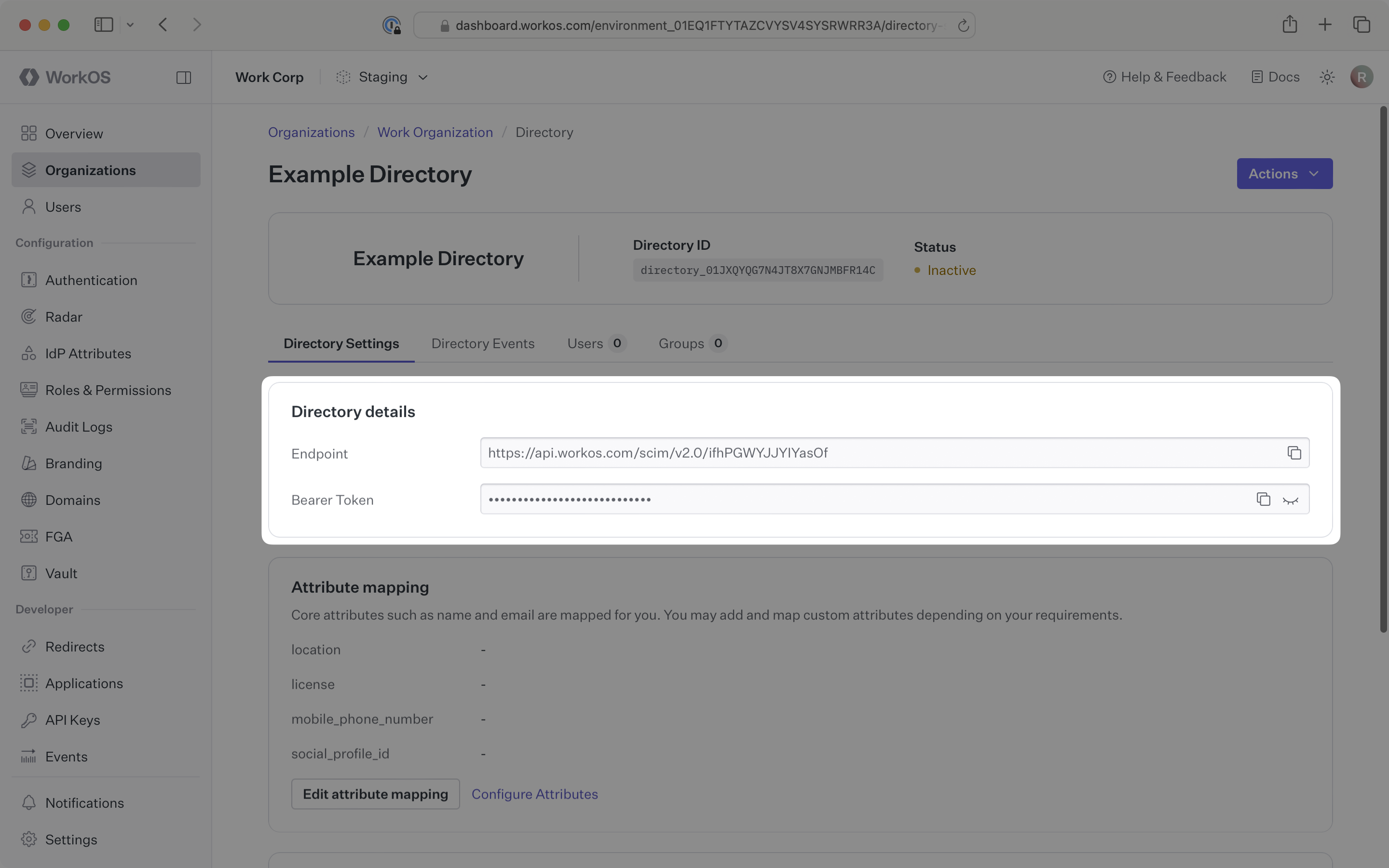
These settings enable the organization’s SCIM server to securely send user and group data to your application through WorkOS.
Each SCIM directory authenticates requests with one of two methods, selected during setup. A directory accepts requests using its selected method only.
- Bearer token (default): A static token the SCIM server sends with every request. Bearer tokens are generated on demand from the Bearer tokens card in the WorkOS Dashboard. IT contacts can also generate, rotate, and revoke bearer tokens themselves from the Admin Portal. See Bearer token rotation for details.
- OAuth 2.0 client credentials: WorkOS issues a client ID and client secret for the directory, along with a token URL. The SCIM server exchanges these credentials at the token URL for a short-lived access token and uses that token to authenticate its requests. Identity providers like Okta and Entra ID support this method natively – see the Okta SCIM and Entra ID SCIM guides for provider-specific steps.
The organization’s IT team will handle the SCIM server configuration on their end. You simply need to provide them with the endpoint URL and bearer token from the WorkOS Dashboard.
Typically, the organization’s IT team will use these values to configure your application within their SCIM server or identity provider admin dashboard.
Login to the WorkOS Dashboard.
In the left navigation menu, select the Organizations tab. Select the appropriate organization for which you will enable a SCIM directory sync connection.
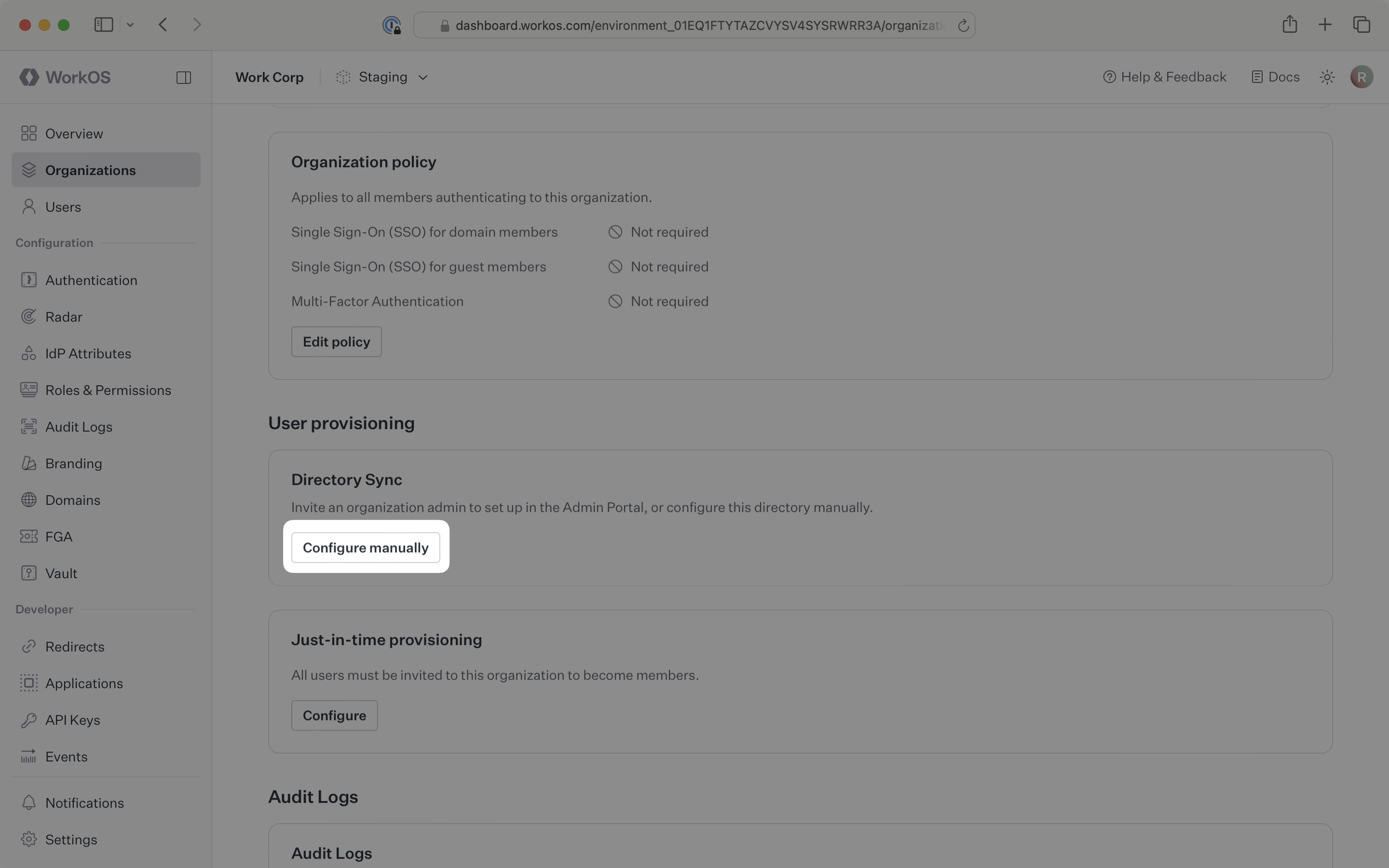
On the organization’s page, scroll down to the Directory Sync section. Click Configure manually.
Select Custom SCIM v2.0 as the directory type. Input an appropriate name for the connection. Click Create Directory.
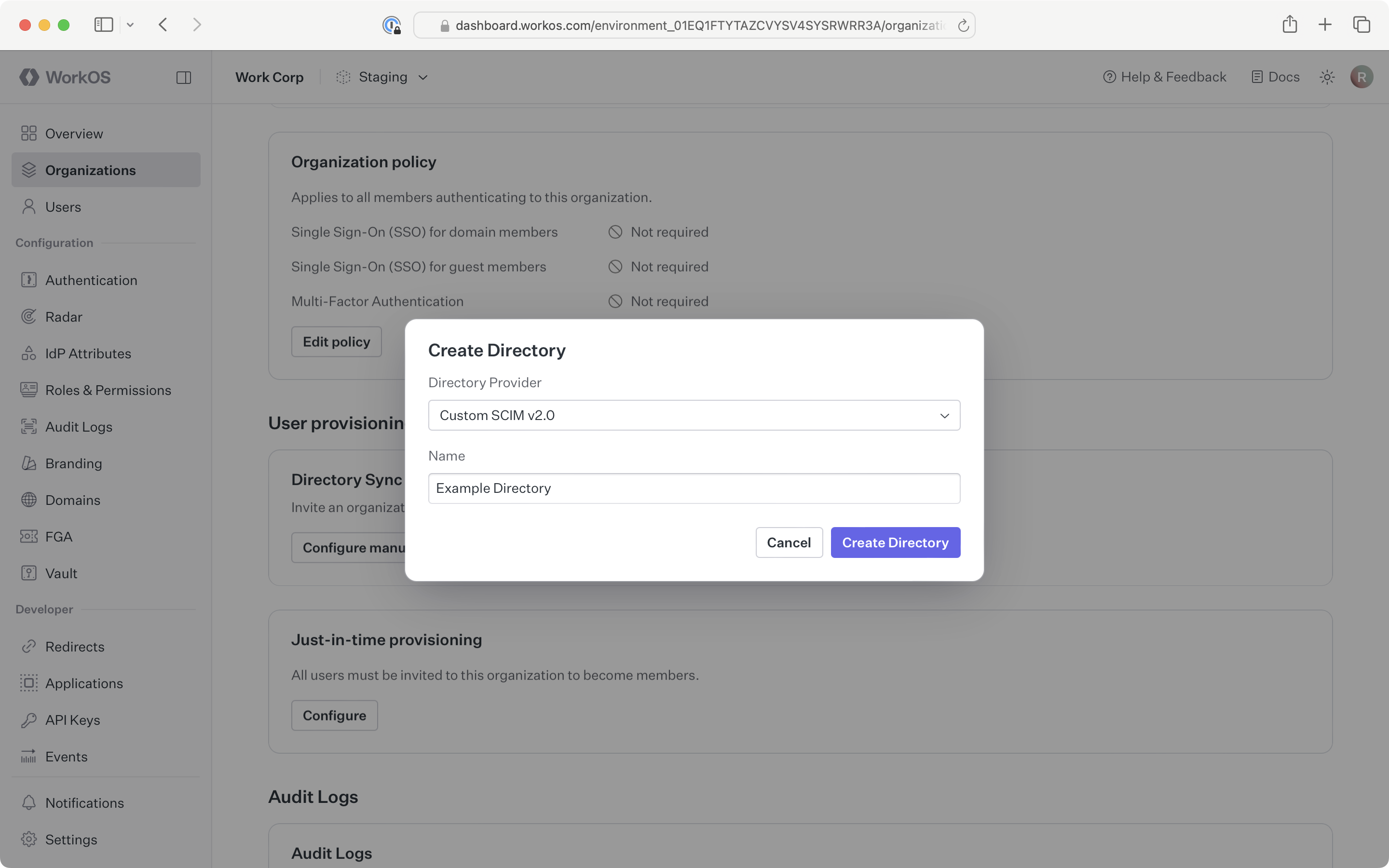
The directory sync connection will now display the endpoint for the SCIM server. To create a bearer token, click Generate token on the Bearer tokens card. The token is shown once at creation time – copy it before closing the dialog.
To use OAuth 2.0 client credentials instead, select it as the authentication method in the directory’s setup flow. WorkOS generates the client ID, client secret, and token URL for the directory, and displays them on the configuration step. The client secret is shown once – copy it before continuing.
Copy the Endpoint from the Directory details section and the credentials for the directory’s authentication method.
For a directory using a bearer token, provide these values to the organization’s IT team so they can configure the application within their SCIM server or identity provider admin dashboard:
- Endpoint URL: The destination where their SCIM server will send user and group data
- Bearer Token: Authentication credentials for secure communication
For a directory using OAuth 2.0 client credentials, provide these values instead:
- Endpoint URL: The destination where their SCIM server will send user and group data
- Token URL: The OAuth token endpoint where their SCIM server exchanges the client credentials for an access token
- Client ID and Client secret: The credentials used in the token exchange
Once the organization has configured these values in their SCIM server, your application will be ready to receive real-time user and group synchronization.
Now, whenever the organization assigns users or groups to your application in their directory, you’ll receive real-time dashboard updates based on changes in their system.
A detailed guide to integrate the WorkOS API with your application can be found here